
Windows Share from a Mac KB ID 0001939
Problem
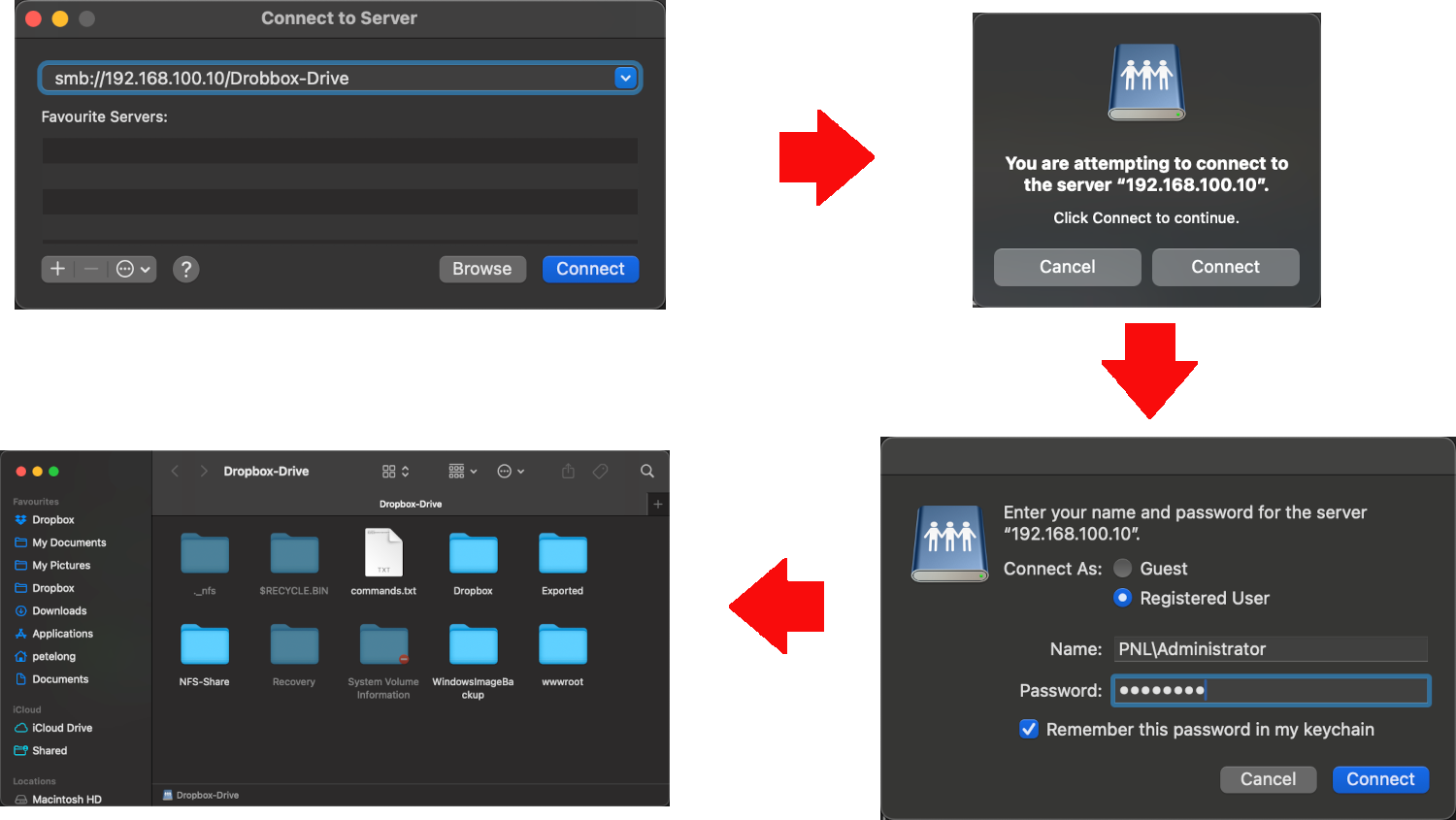
Macs can happily speak SMB, so connecting to a Windows share should not be a problem. It’s not something I do a lot of, but someone was struggling and asked the question on EE this morning. So I ran through it myself and had similar problems. When attempting to connect to a share on a Windows 2025 server (over a VPN). I got this.
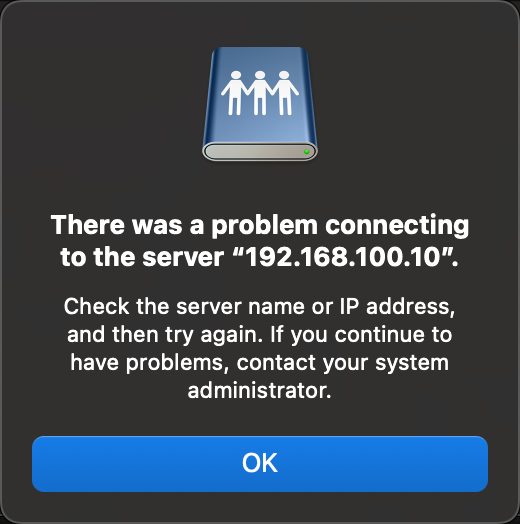
There was a problem connecting to the server “Server IP or Hostname“
Check the server name or IP address, and then try again. If you continue to have problems, contact your system administrator.
OK, so there are some hoops to jump through then!
Solution
Basics first, can you ping the IP or hostname you are trying to connect to, and can you prove TCP connectivity on port 445 (Microsoft SMB).
ping IP-or-hostname
nc -zv IP-or-hostname 443
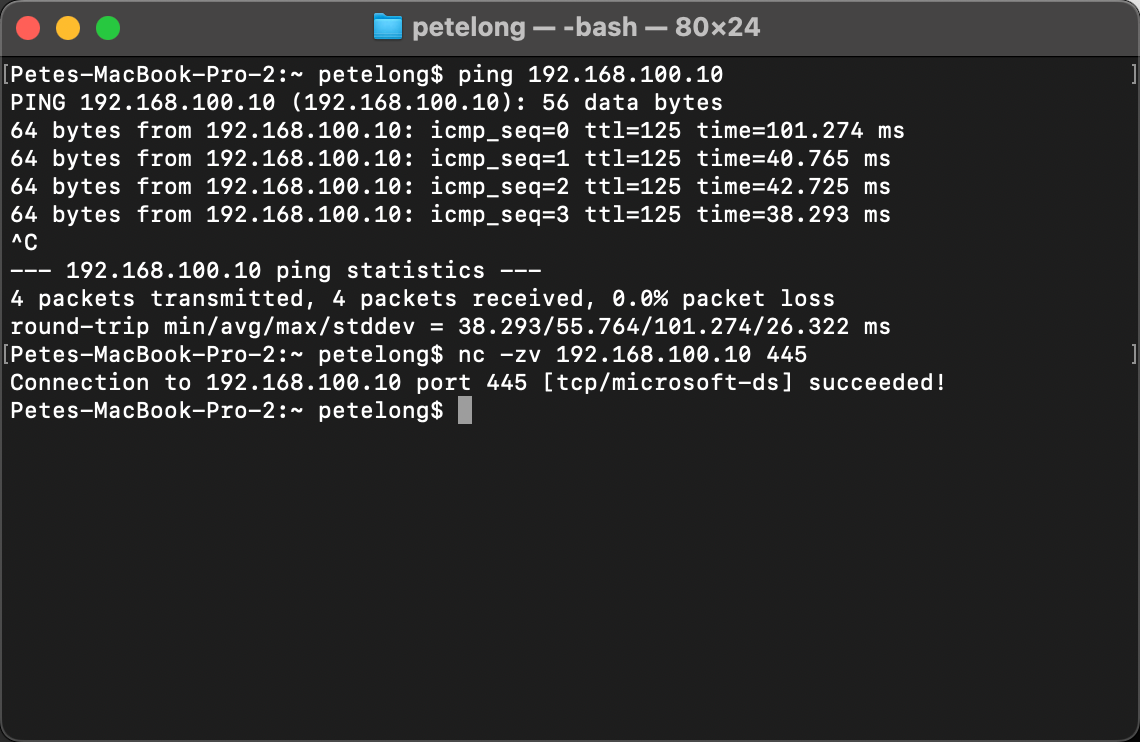
Obviously, pings should reply, and the TCP 443 test should say succeeded!
Testing Permissions and Credentials : Windows Share from a Mac
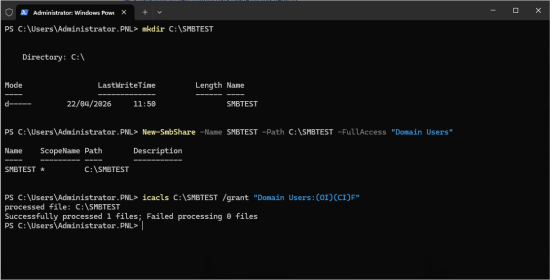
The next most likely candidate is permissions or incorrect usernames and passwords. You can test BOTH by creating a test share on the SAME TARGET machine, and accessing it from your Mac. Execute the following commands.
mkdir c:\SMBTEST
New-SmbShare -Name SMBTEST -Path C:\SMBTEST-FullAccess "Domain Users"
icacls C:\SMBTEST /grant "Domain Users:(OI)(CI)F"
Then attempt to connect from your mac.
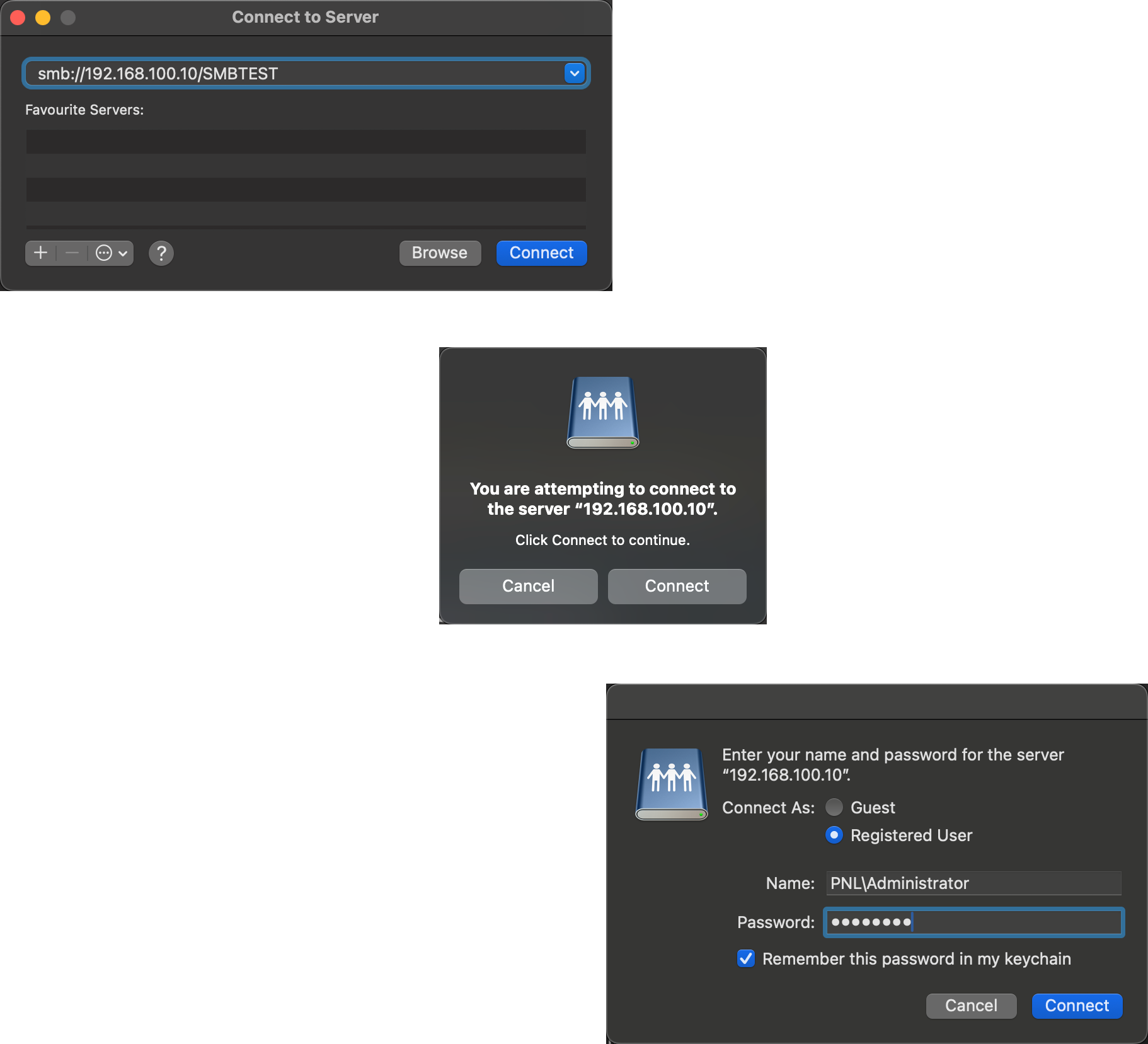
All being well, the share should ‘mount‘ on your mac. If so, then the problem is the share or NTFS permissions on the ACTUAL folder/share you are trying to get to.
Windows Share From a Mac :Still not Working
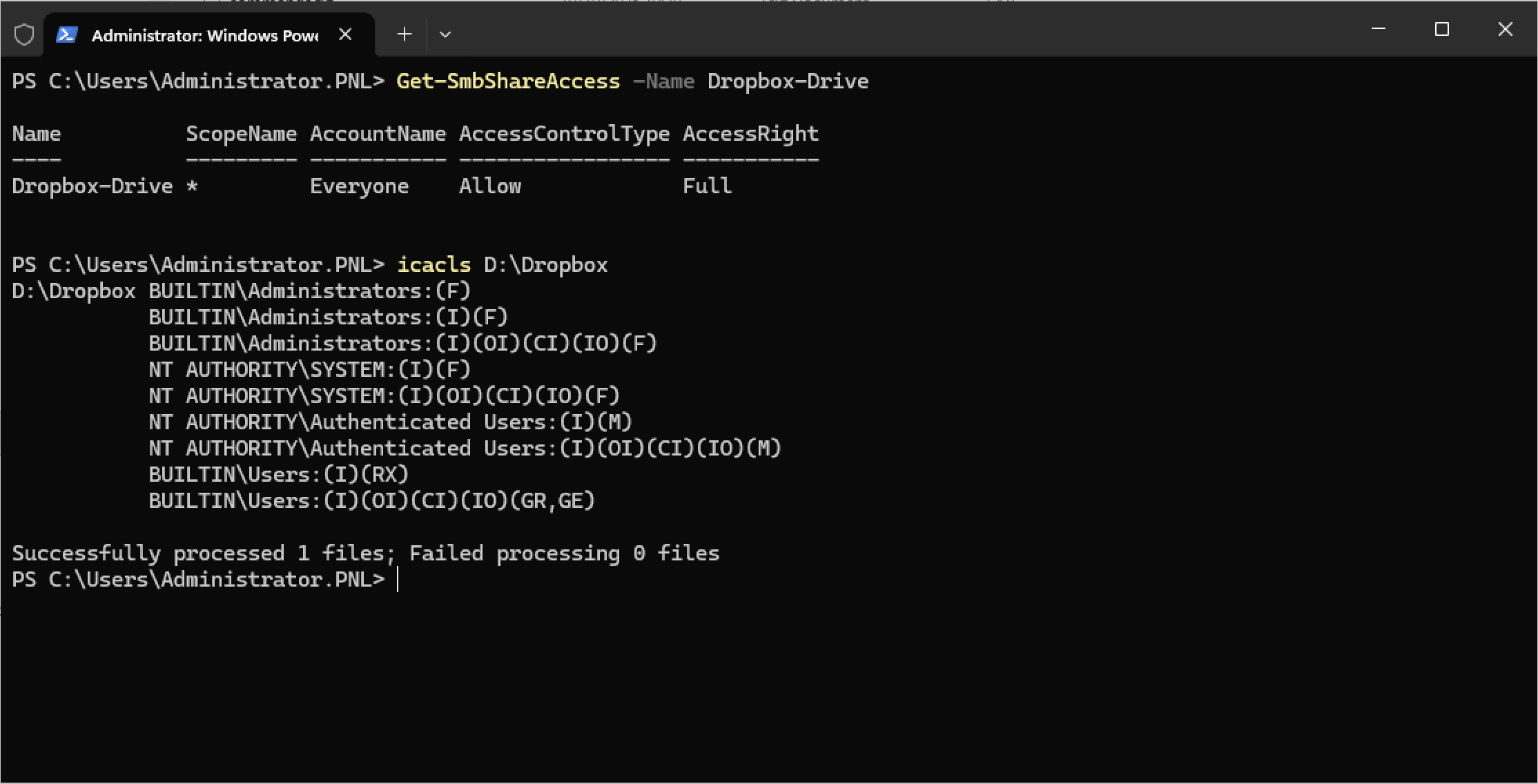
Typically, I give share permissions as Everyone = Full control, and NTFS permissions, I grant Domain users = Modify
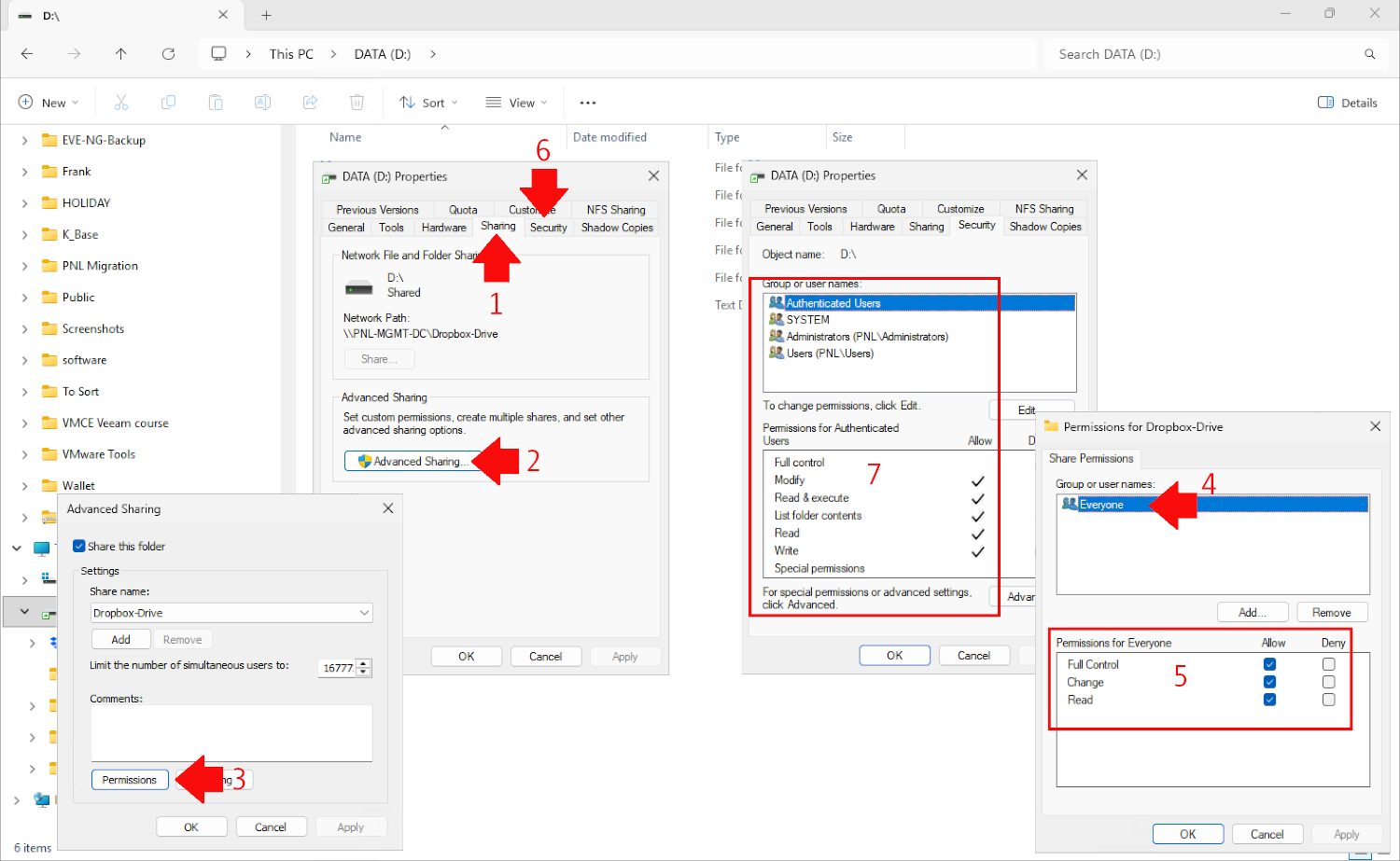
Note: You can get Share and NTFS permissions programmatically using PowerShell like so
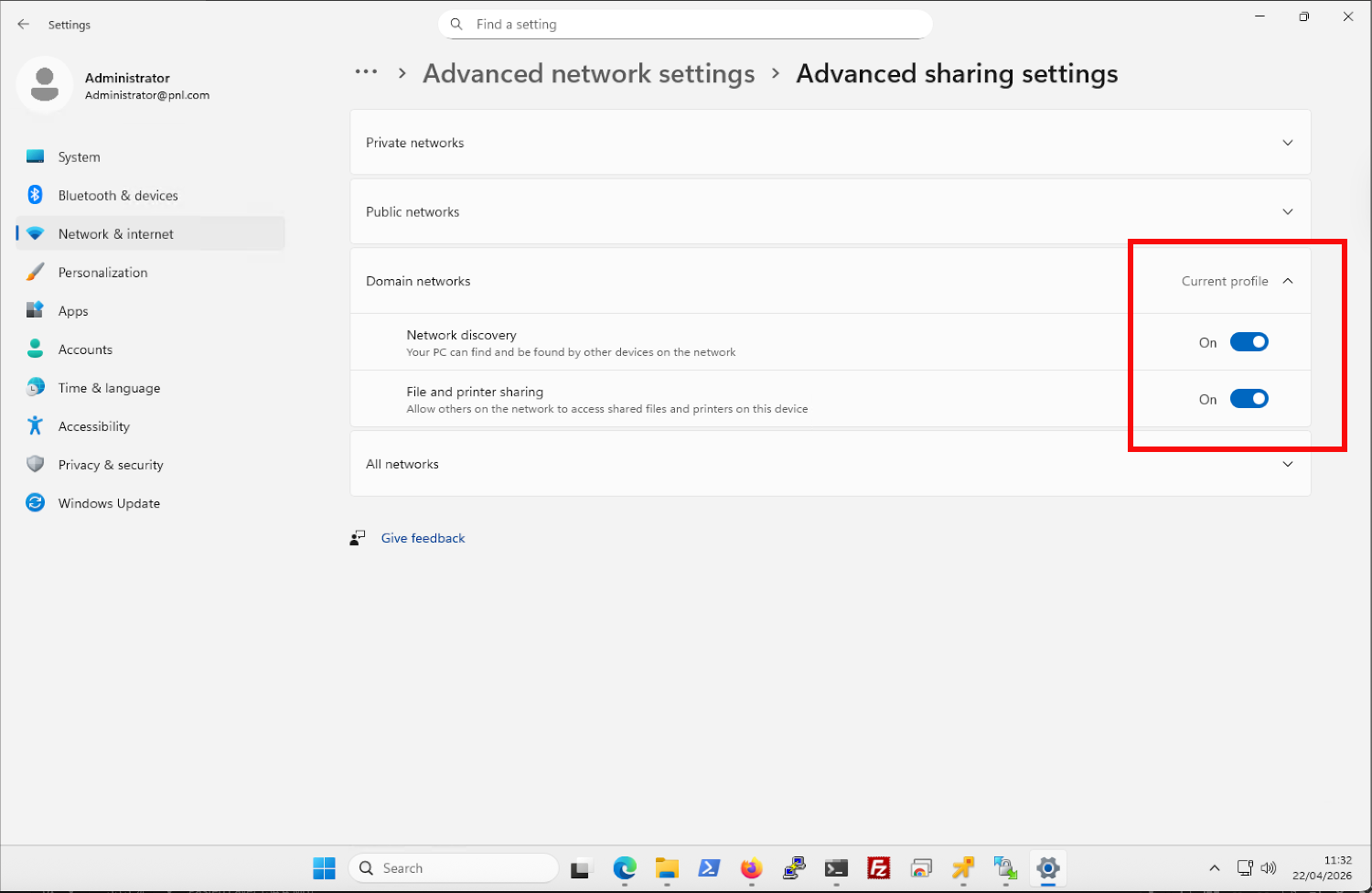
Go to Settings > Network & Internet > Advanced Network Settings > Advanced Sharing Settings > MAKE SURE BOTH > Network discovery is enabled and File and Printer Sharing.
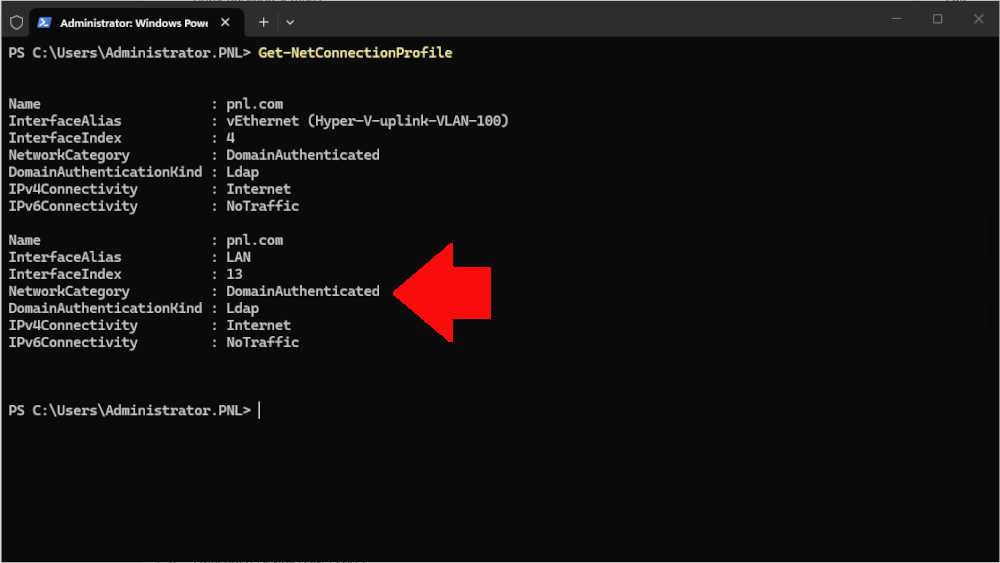
Now let’s look at the firewall, the NICs on you destination will have three settings Public, Private, or Domain. To find out which, you run a Get-ConnectionProfile command.
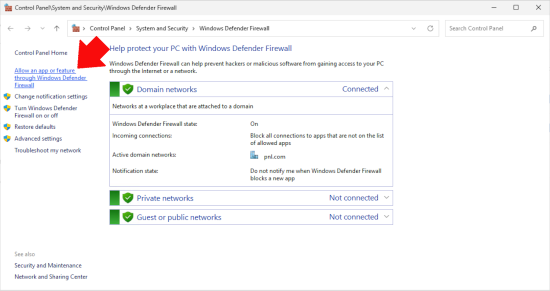
Now open the Windows Defender settings, (you can see here that the domain profile is connected, as you found out above) and select “Allow an app or feature though windows Defender firewall“.
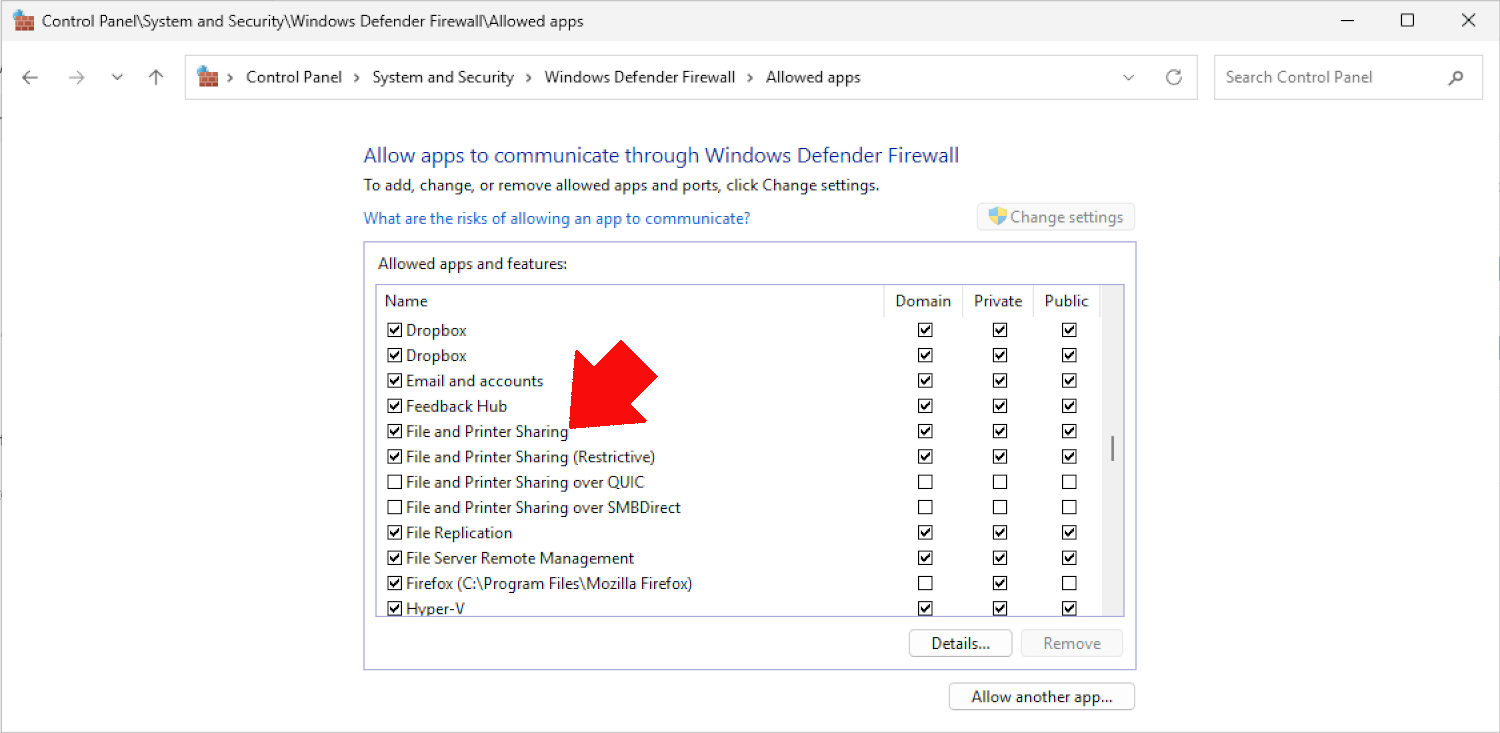
Ensure File sharing is allowed.
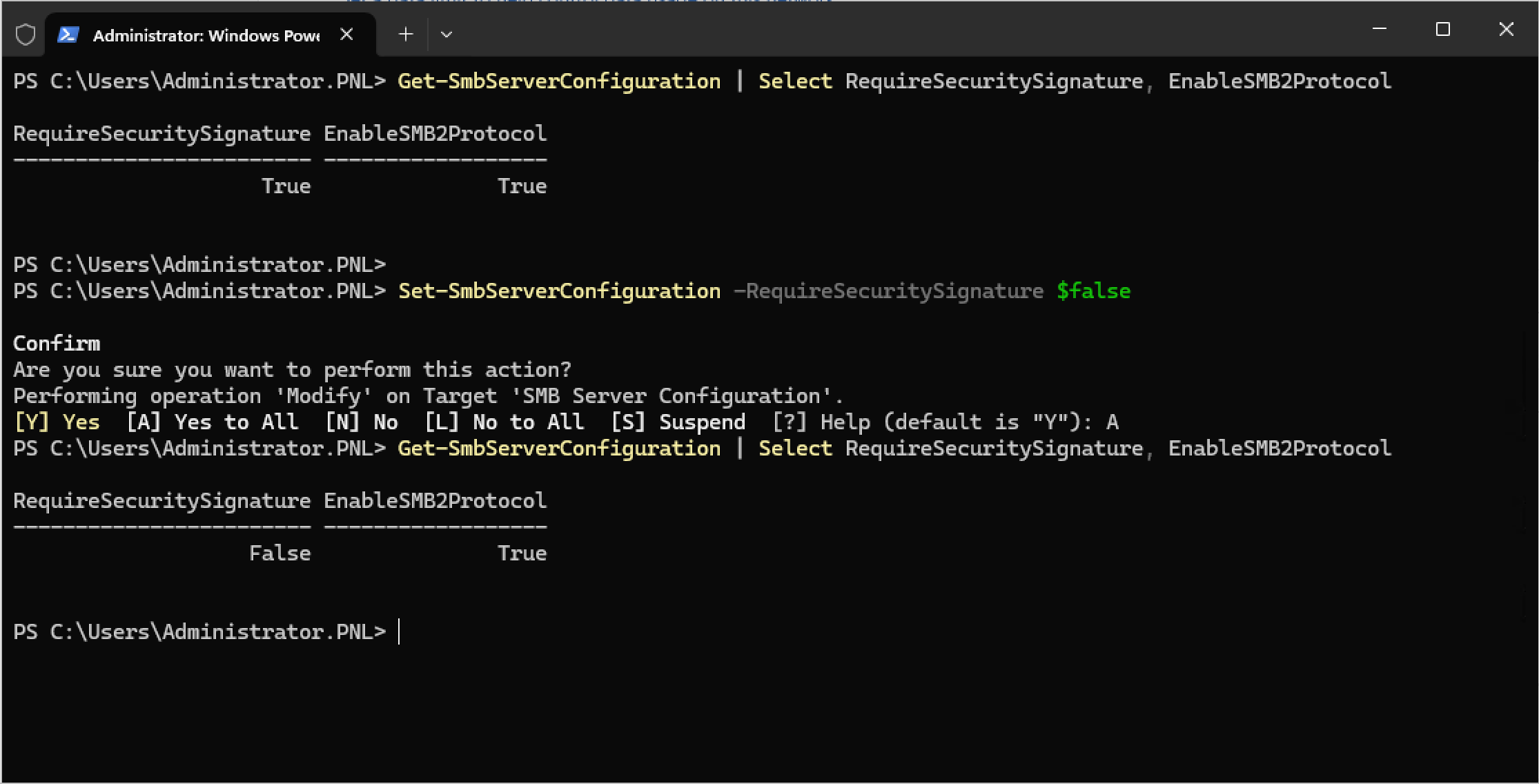
Another ‘gotcha‘ is SMB Signing, on the target see if it’s enabled with.
Get-SmbServerConfiguration | Select RequireSecuritySignature, EnableSMB2Protocol
If as in the example below RequireSecirtySignature is set to true, you can temporarily disable it (to test) with the following command.
Set-SmbServerConfiguration -RequireSecuritySignature $false
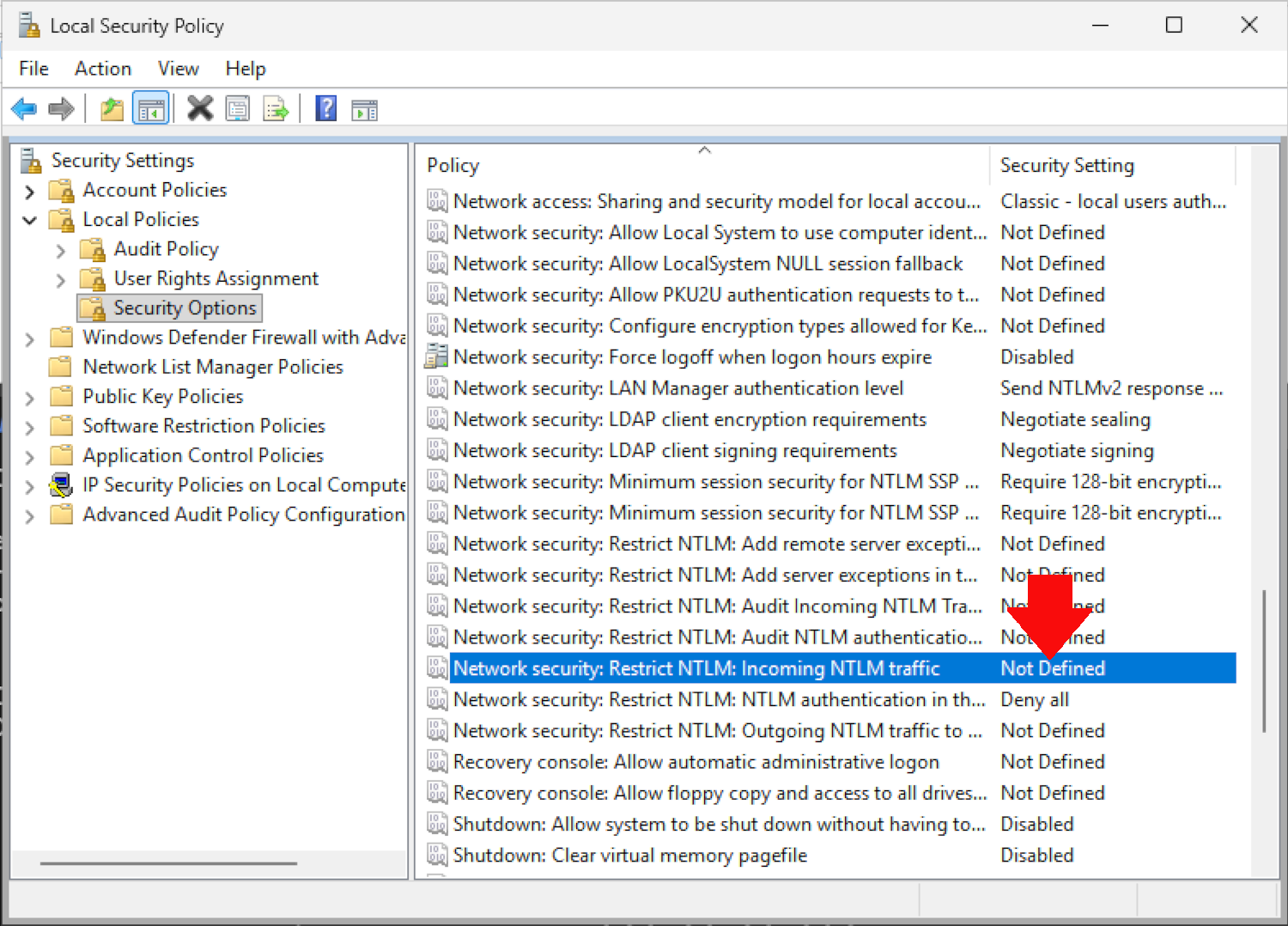
Make sure there is no restriction on the target machine, run secpol.msc and navigate to.
Local Policies > Security Policy > Network Security:Restrict NTLM:Incoming NTLM Traffic
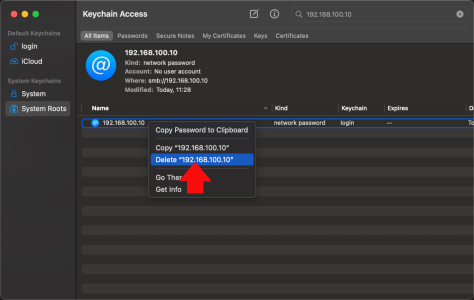
Make sure you DON’T have any incorrect cached credentials in the mac’s Keychain Access.
All being well, you should now be able to connect
If that’s not the case, paste your solution below to cover anything I’ve missed.
Related Articles, References, Credits, or External Links
Visit PeteNetLive on YouTube! (Please Subscribe)
