
Can’t Connect to the Remote Computer KB ID 0001936
Problem
Seen when attempting to RDP to a remote computer.
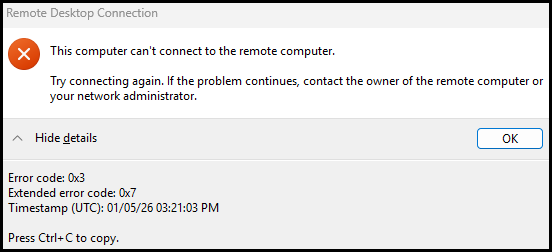
“This computer can’t connect to the remote computer.
Try connecting again. If the problem continues, contact the owner of the remote computer or your network administrator.”Error details:
Error code: 0x3
Extended error code: 0x7
Timestamp: 01/05/26 03:21:03 PM
Solution: Can’t Connect to the Remote Computer
This is an annoyingly nondescript error. Error Code 0x3: This code usually means that the remote computer is unreachable. This could be because of network issues, server misconfiguration, or that the remote computer isn’t currently allowing RDP connections. Extended Error Code 0x7: This error typically indicates a general connectivity problem, such as firewall settings blocking the Remote Desktop Protocol (RDP) connection or a misconfigured server.
Prove Nework Connectivity: Can’t Connect to the Remote Computer
When you can’t connect to a remote computer, the first thing to do is ensure you are either on the same network or can route to the network the remote computer is on, either across the internet or via a VPN To do that, use ping. (Try using the remote computer name (to rule out a DNS error, and by IP address.
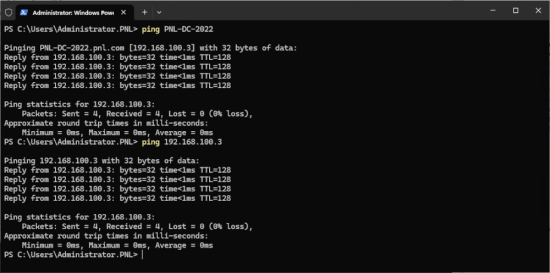
PING WARNING: We have come to rely on ping a lot, but the lack of a ping response does not always mean a lack of connectivity, if you are on the SAME network segment, after running you ping and getting no response, look in your ARP CACHE, if there’s any incomplete entry the remote machine might well be ‘up’ just not responding to pings, (arp -a).
Then check that you can reach the remote machine on TCP port 3389 (RDP port) using the following from your local machine.
Test-NetConnection -ComputerName REMOTE-COMPUTER-NAME-OR-IP -Port 3389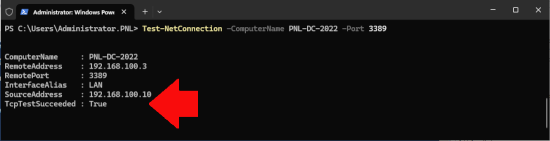
Note: You want it to say true.
Check Remote Desktop Settings: Can’t Connect to the Remote Computer
On the machine you are trying to connect to, run the following script to reveal if RDP has been enabled.
$rdpStatus = Get-ItemProperty -Path 'HKLM:\System\CurrentControlSet\Control\Terminal Server' -Name 'fDenyTSConnections'

if ($rdpStatus.fDenyTSConnections -eq 0) {
    "RDP is ENABLED"
} else {
    "RDP is DISABLED"
}
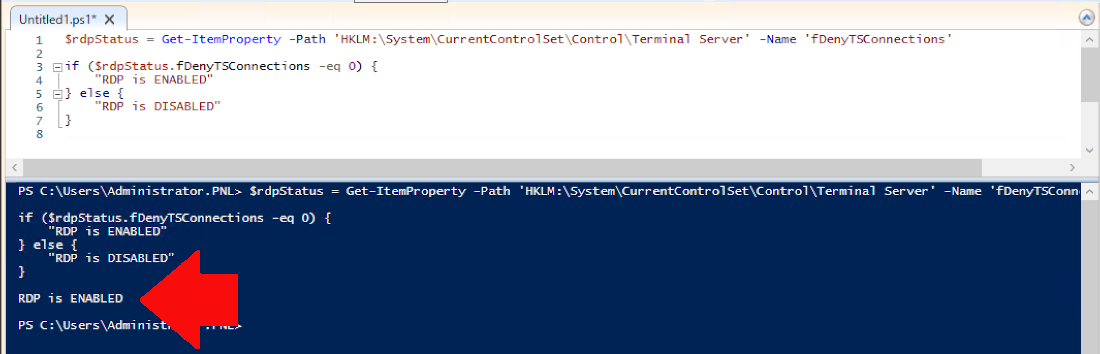
Then make sure that RDP is NOT getting blocked by the LOCAL firewall on that server. Again, on the machine you are trying to connect to, run the following.
(Get-ItemProperty 'HKLM:\System\CurrentControlSet\Control\Terminal Server').fDenyTSConnections -eq 0
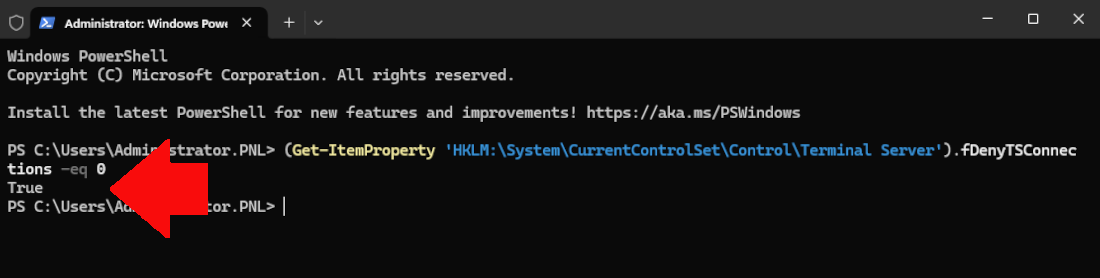
Note: You want it to say true. If it’s enabled and you still cannot get access, make sure any UPSTREAM firewalls (or routers that have ACLs) are allowing TCP port 3389 (or port forwarding TCP port 3389 to the CORRECT server). Also, remember that there may be a firewall at YOUR location that’s blocking RDP (the Test-NetConnection test above would fail in this scenario).
User Right Assignment: Can’t Connect to the Remote Computer
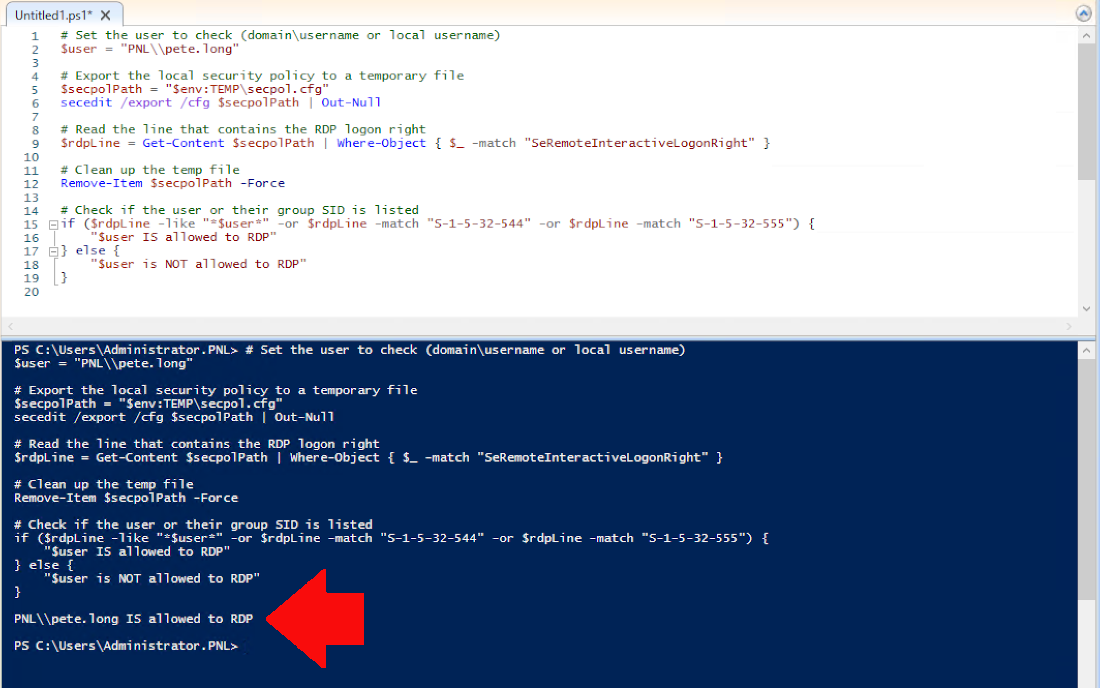
This is pretty much a connectivity problem, but let’s make sure the user you are attempting to connect as has the correct rights assigned.
# Set the user to check (domain\username or local username)
$user = "DOMAIN-NAME\\USER-NAME"

# Export the local security policy to a temporary file
$secpolPath = "$env:TEMP\secpol.cfg"
secedit /export /cfg $secpolPath | Out-Null

# Read the line that contains the RDP logon right
$rdpLine = Get-Content $secpolPath | Where-Object { $_ -match "SeRemoteInteractiveLogonRight" }

# Clean up the temp file
Remove-Item $secpolPath -Force

# Check if the user or their group SID is listed
if ($rdpLine -like "*$user*" -or $rdpLine -match "S-1-5-32-544" -or $rdpLine -match "S-1-5-32-555") {
    "$user IS allowed to RDP"
} else {
    "$user is NOT allowed to RDP"
}
Pivot to Another Machine / Location : Can’t Connect to the Remote Computer
A good engineer changes the variables to find a solution. If the machine you are connecting from is Windows 11, try a different OS, try to RDP from another server that’s next to the one you can’t get to. Try a different RDP client (I use Royal TSX, as I’m a mac user, but there’s a Royal TS version for Windows, or use the RDP app).
Related Articles, References, Credits, or External Links
Remote Desktop Services – Connection Errors (RDP Errors)
Windows RDP: ‘An authentication error has occurred’
Visit PeteNetLive on YouTube! (Please Subscribe)
