
Teams Speakers Muted KB ID 0001935
Problem
I’m not really sure when this problem started, my Microsoft Teams client (for mac) started joining meetings with my SPEAKERS and MICROPHONE muted. Doing any search yielded pages of people saying, “Did you mean your microphone is muted?” No, I didn’t!
What happened was when I joined a meeting, I was greeted with this icon and both the microphone and speakers were muted, then I had to click this icon to enable them.

So by the time I’ve clicked this button then confirmed I want to enable audio, all other meeting participants have seen me join and have started speaking to me, but I can’t hear them, so they assume I have a problem, or I’m simply being rude!
Solution : Teams Speakers Muted
I put up with this for a while and did some searches, but all the results were from people who had the same problem, but the replies were all – I think you mean muted microphone, and I’d lose my temper and put up with it.
The actual FIX for the problem was probably staring you in the face, but it’s on a screen you don’t pay much attention to! When you join a meeting. If the settings look like this, you speakers will be muted.
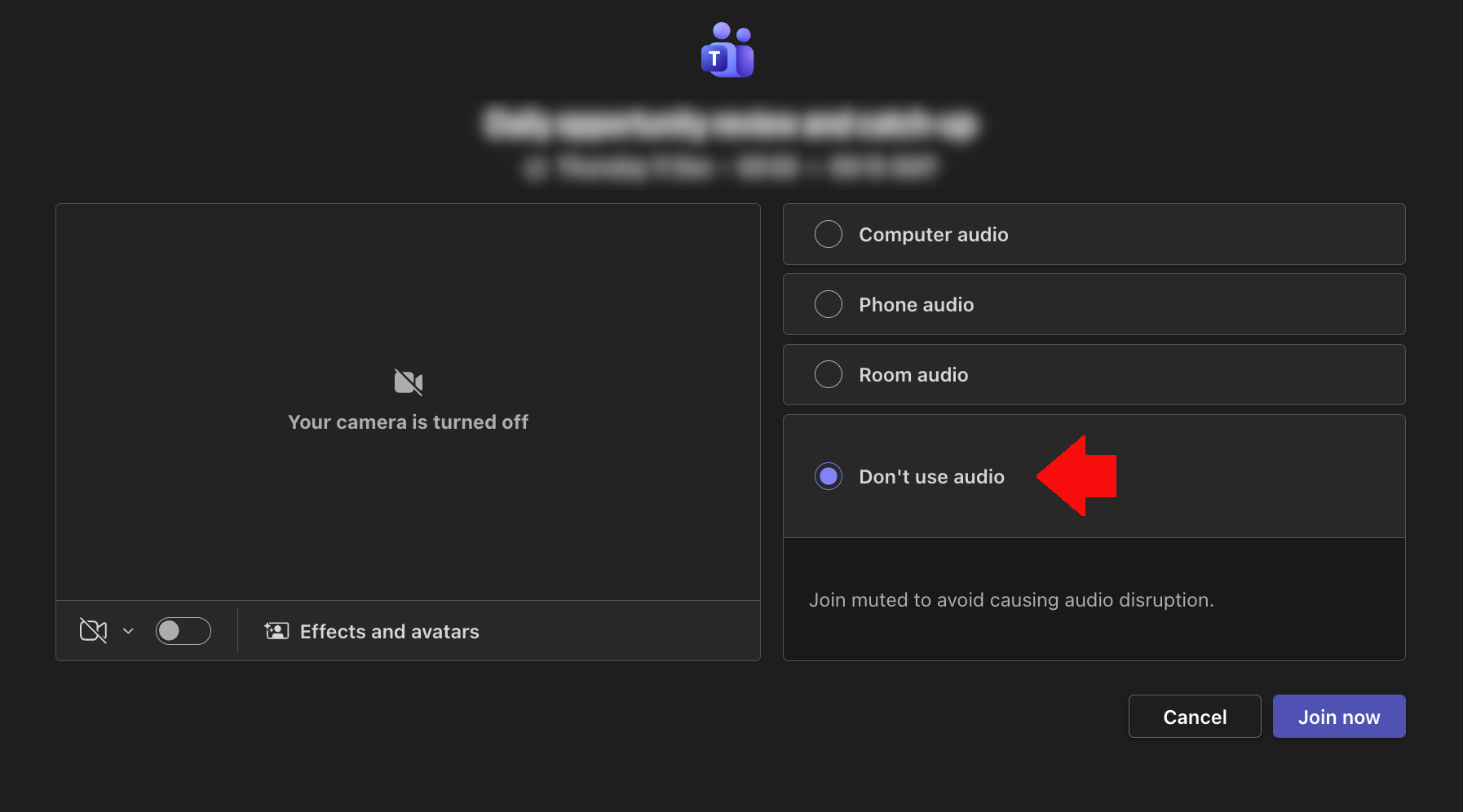
You need to change this setting to computer audio, like so.
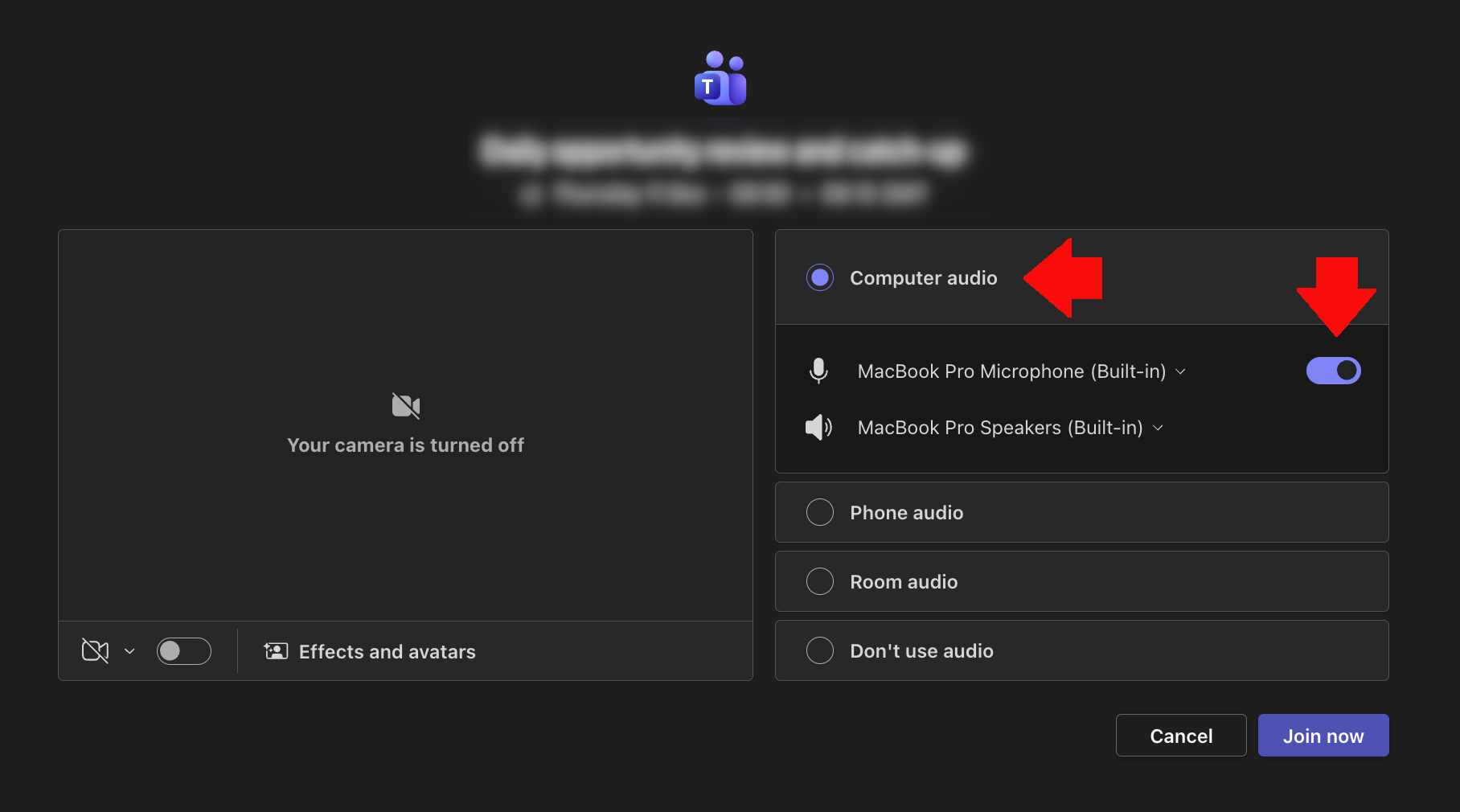
It will remember the setting next time you join.
Related Articles, References, Credits, or External Links
NA
Visit PeteNetLive on YouTube! (Please Subscribe)
