
KB ID 0000082
Problem
This section assumes you have multiple partitions, and goes through the steps needed to remove them using FDISK
WARNING: Removing partitions DESTROYS all the data in those partitions, make sure you have a backup of your important information.
For this example the hard drive in question has a PRIMARY partition (approx 2Gb) and two LOGICAL DRIVES (each approx 1Gb) if I’ve just confused the hell out of you CLICK HERE
Solution
Deleting Partitions
1. First ensure you have a windows 98SE Bootdisk, you can download one, CLICK HERE
2. Boot the PC with your boot disk, ENSURE the boot order is set in the BIOS to boot from the floppy disk BEFORE the hard drive.
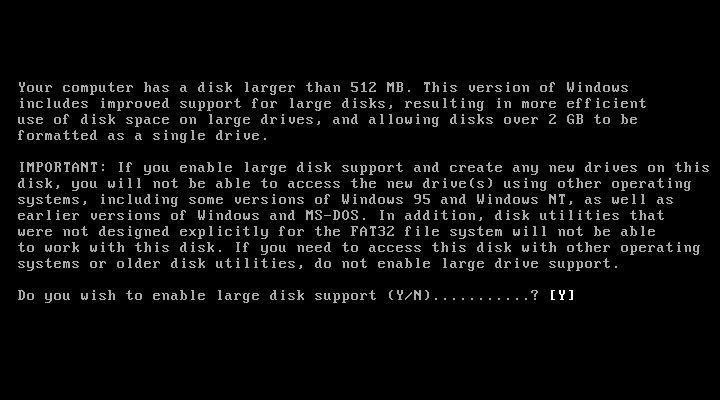
3.To launch FDISK simply type fdisk {enter} at the command prompt, when the program launches press the Y key and {enter} to enable large drive support.
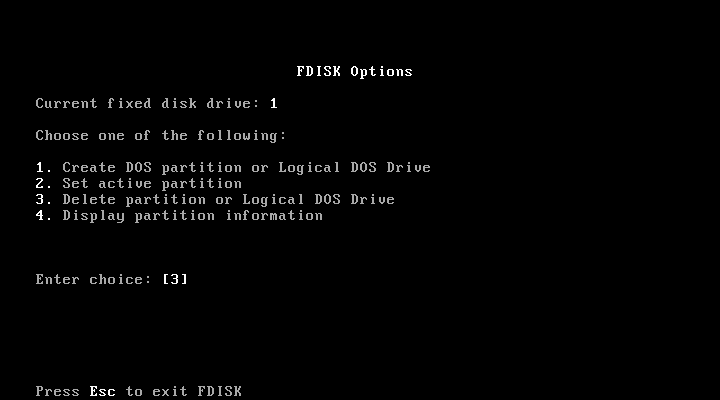
4. This is the main FDISK menu, as we are Deleting partitions we need to change the selection from the default [1] to [3] “Delete partition or logical DOS Drive” Press 3 then {enter}
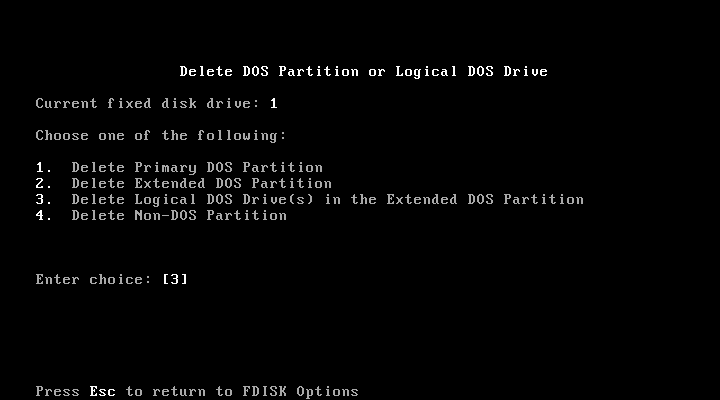
5. Now remember the LOGICAL drives must be deleted FIRST so we need to select “Delete logical DOS Drive(s) in the Extended partition” Press 3 then {enter}
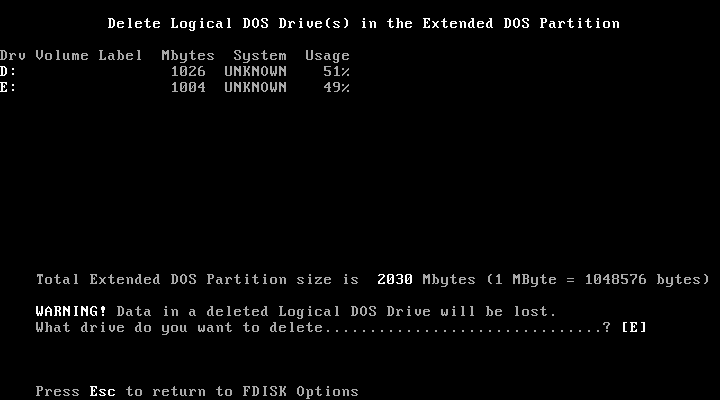
6. Now the system will display the logical drives, work your way BACKWARDS, the last drive letter here is E so simply push E then {enter}.
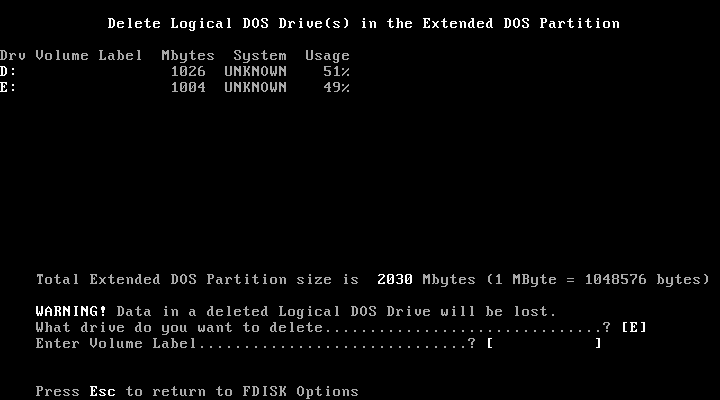
7. FDISK will ask you for the volume label – ours does not have one so we can simply press {enter} if yours does it will be listed above in the volume label column.
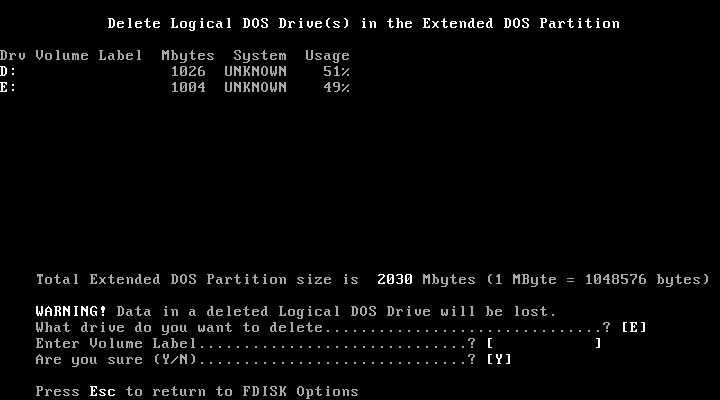
8. At this point you must confirm by pressing Y then {enter}
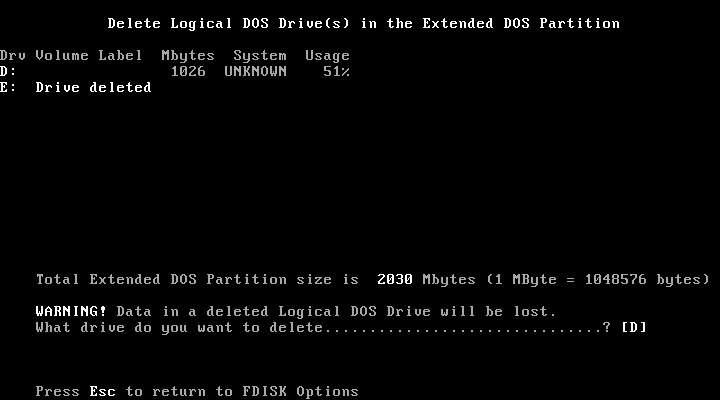
9. The default view will change to show you that E: drive has been deleted, and you can continue to delete the D: drive, simply press D then {enter}.
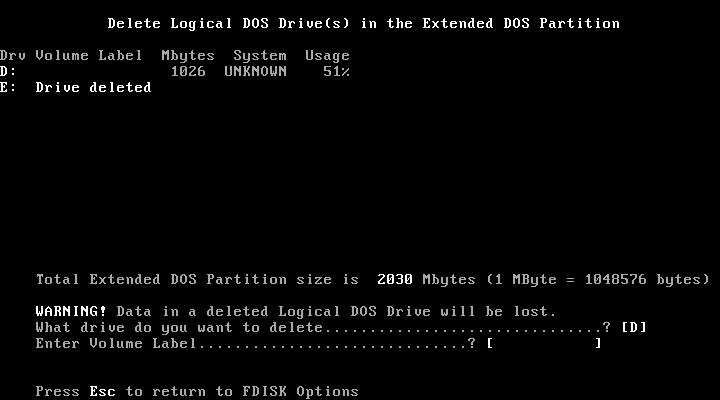
10. Again it will prompt for volume label (See step 8 above).
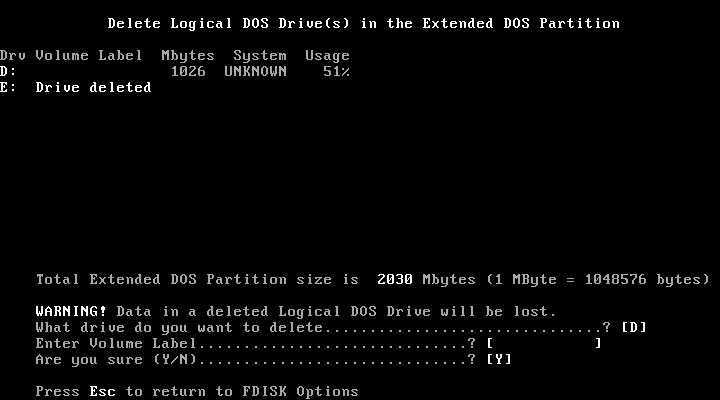
11. You will be asked to confirm press Y then {enter}.
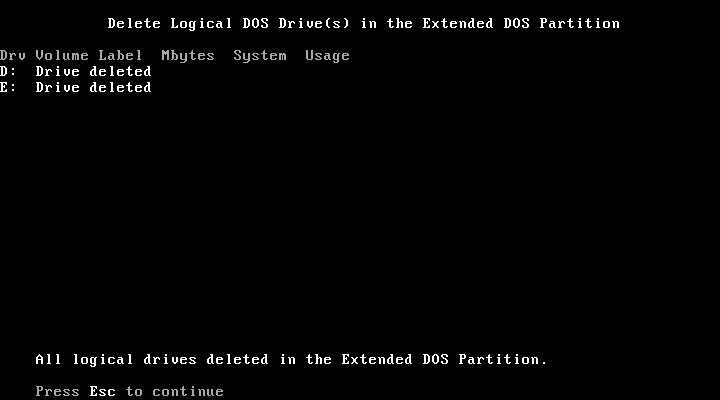
12. You will now see the Logical drives are BOTH deleted, press Esc to exit.
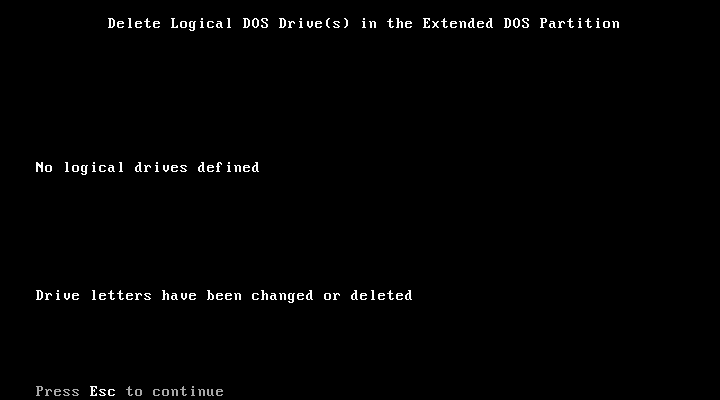
13. At the confirmation page just press Esc.
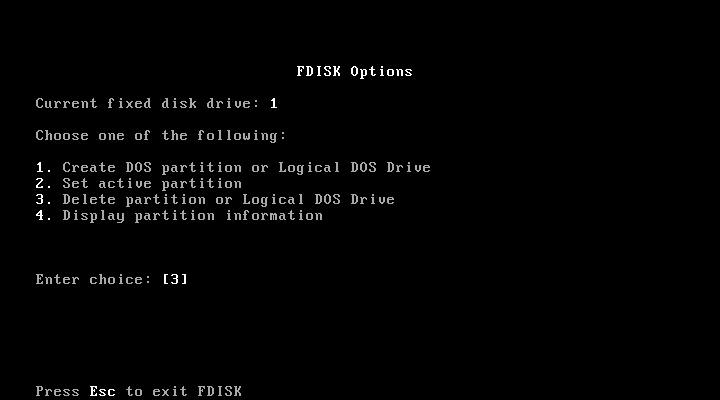
14. Back at the main menu! Now the LOGICAL drives are gone you can delete the EXTENDED partition. Press 3 then {enter}.
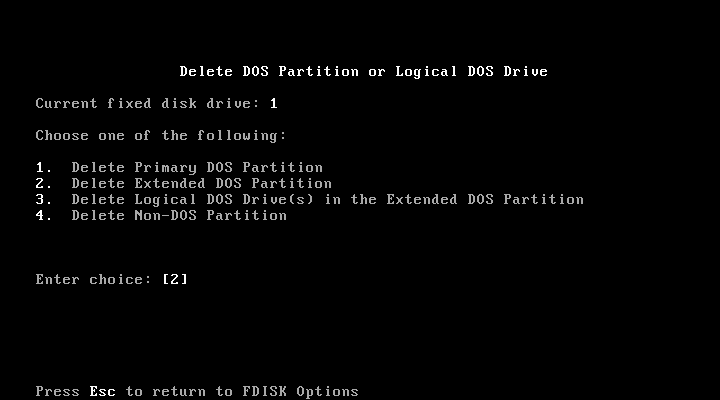
15. To remove the EXTENDED partition press 2 then {enter}.
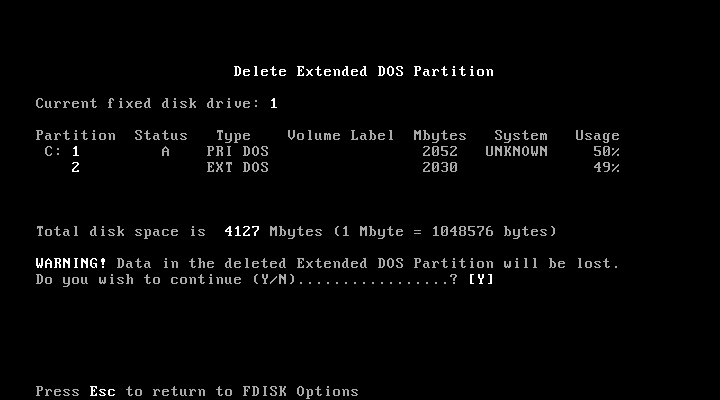
16. There is only one EXTENDED partition so press Y then {enter}.
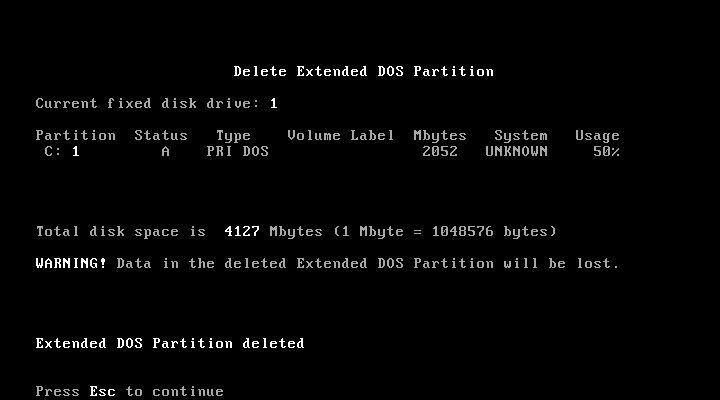
17. More confirmation! Just Press Esc.
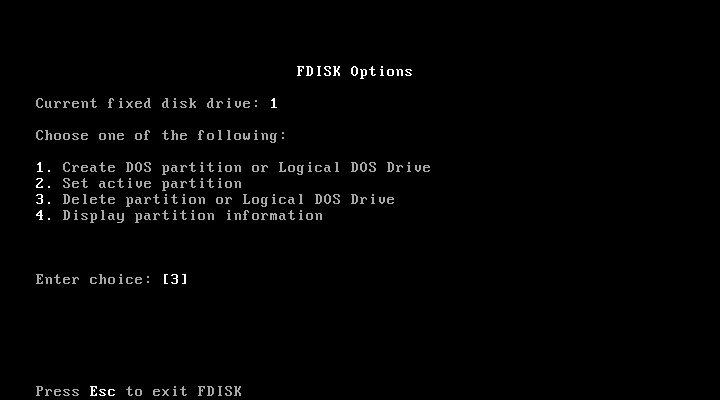
18. Now the EXTENDED Partition is gone you can remove the PRIMARY partition press 3 then {enter}.
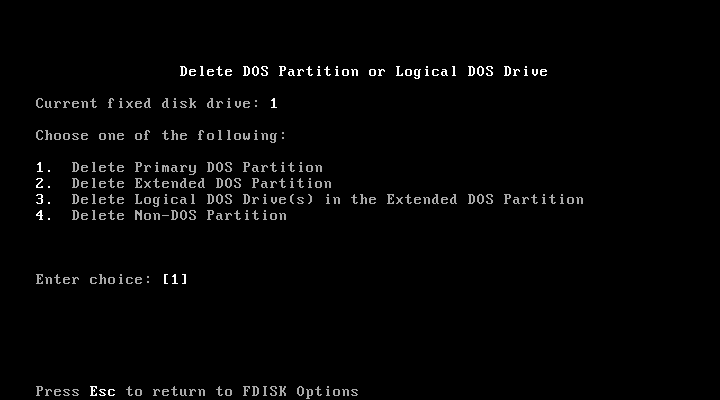
19. Well we know we want the PRIMARY gone so press 1 then {enter}.

20. Its the only one there :0) Press 1 then {enter}.
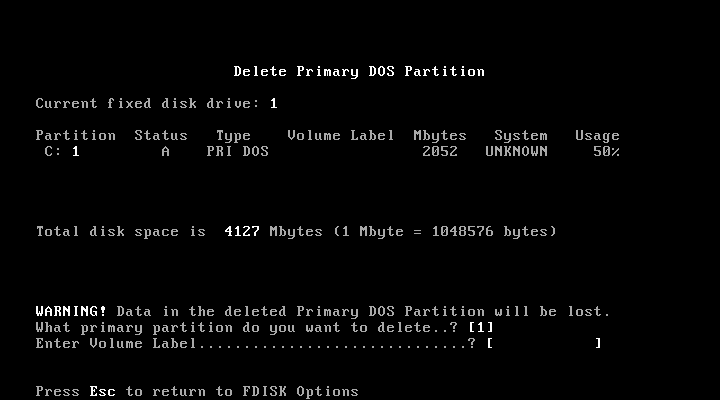
21. If you have a volume label enter it, if not press {enter}.
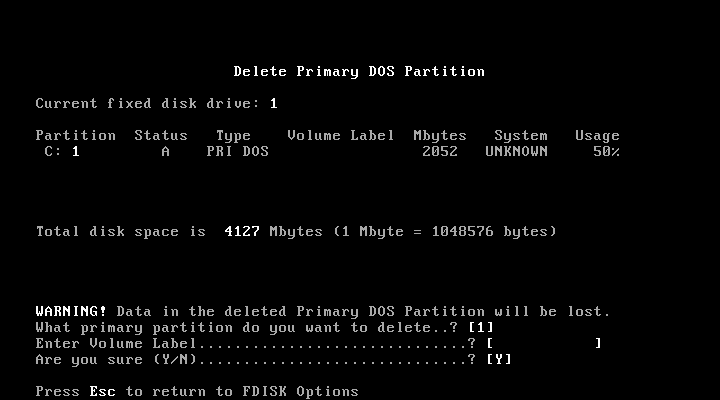
22. Press Y then {enter}.
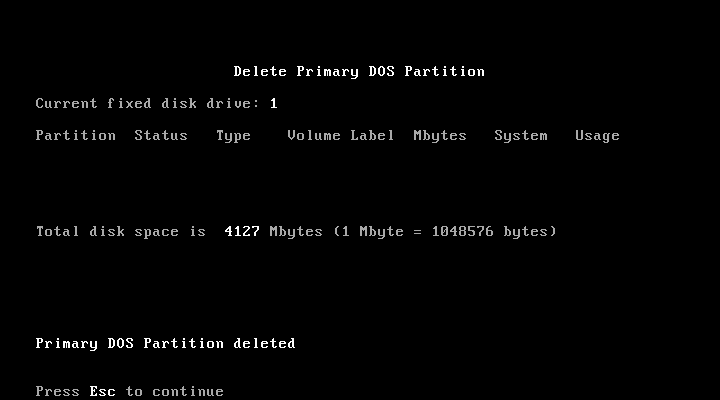
23. Confirmation screen, just press Esc.
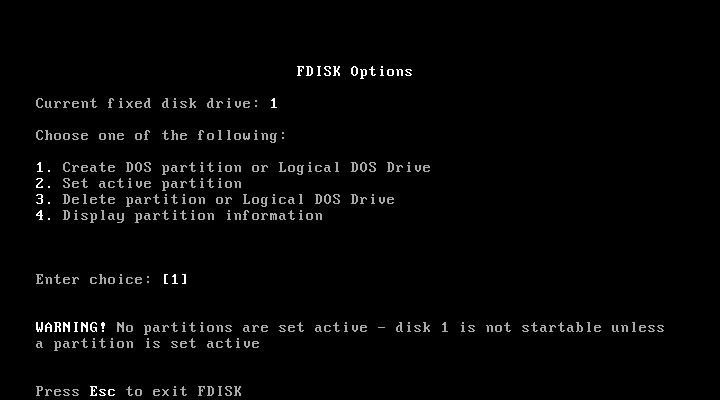
24. Nearly done! Press Esc.

25. Press Esc to exit FDISK, when you are back at command line press Ctrl+Alt+Del to reboot the PC. All your partitions are now removed.
Now you’re done you can either repartition the drive OR if you’re installing Windows 2000 or XP let it do it for you as part of the install process.
To set up simple partitioning (One Partition, one Drive Letter) CLICK HERE
To set up complex partitioning (multiple partitions, multiple drive letters) CLICK HERE
Related Articles, References, Credits, or External Links
NA
