
KB ID 0000589
Problem
This weekend I’ve been doing a school migration, (go live is tomorrow). Just as we were finishing up today, we found out a client application needed a certain user group to have LOCAL administrator rights on the client machines.
I remembered that it could be done and it had something to do with “Restricted Groups”. So when I got home I fired up the test network and ran though it for tomorrow.
Solution
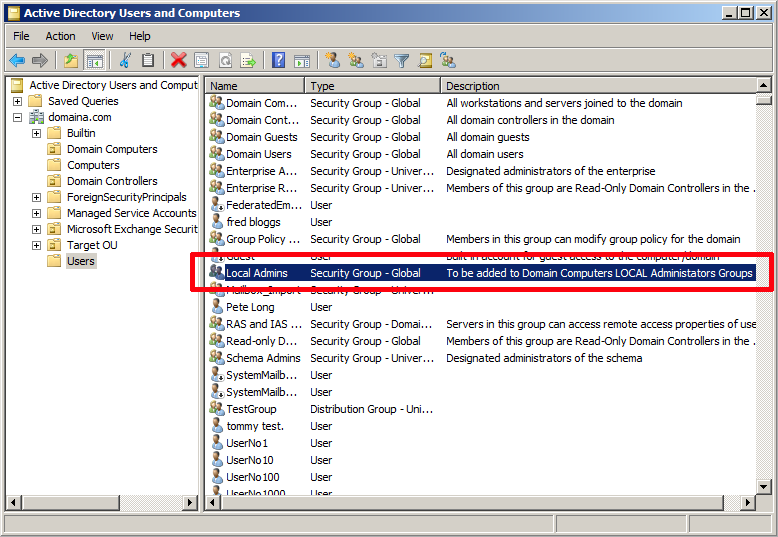
1. Launch “Active Directory Users and Computers” (Start > Run > dsa.msc {enter}). Ensure you have a domain security group, (Not a distribution group) with the domain members you wish to grant access to.
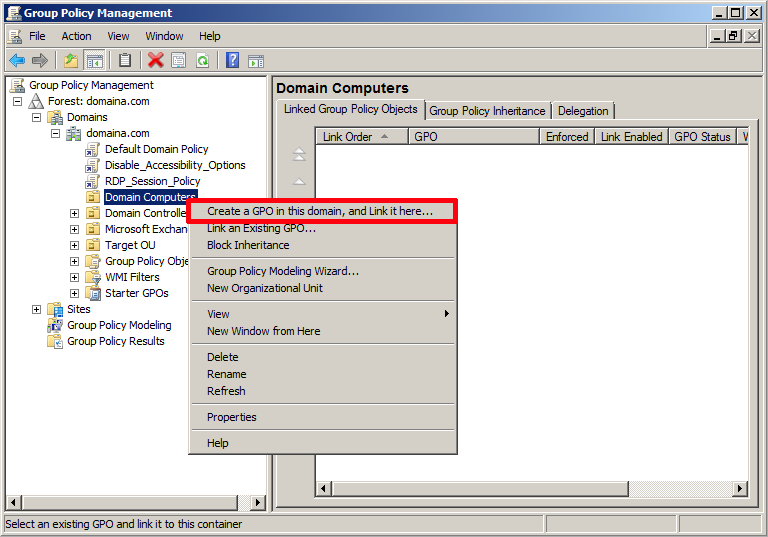
2. On a domain Controller, Start > Administrative Tools > Group Policy Management > Locate the OU that contains the computers that you wish to grant administrative rights to > Right Click >Create a GPO in this domain, and Link it here.
Warning: Do not create a GPO on an OU that contains servers or anything you would NOT want you users to have administrative access to.
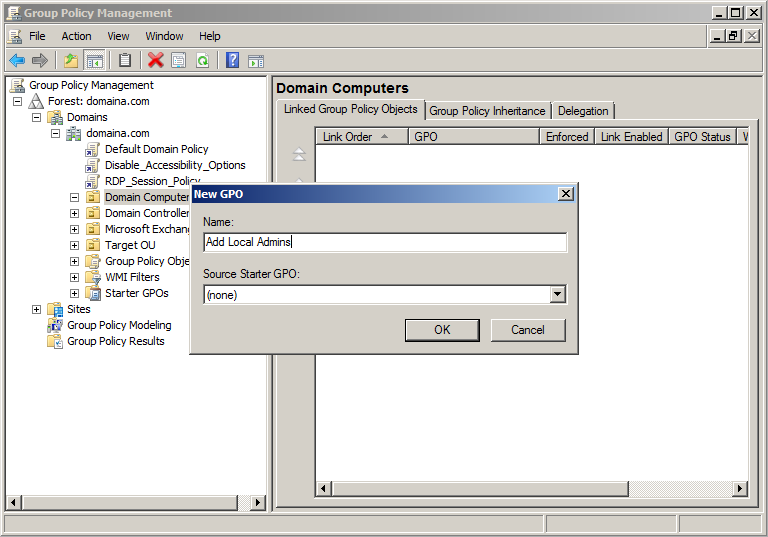
3. Give the policy a sensible name.
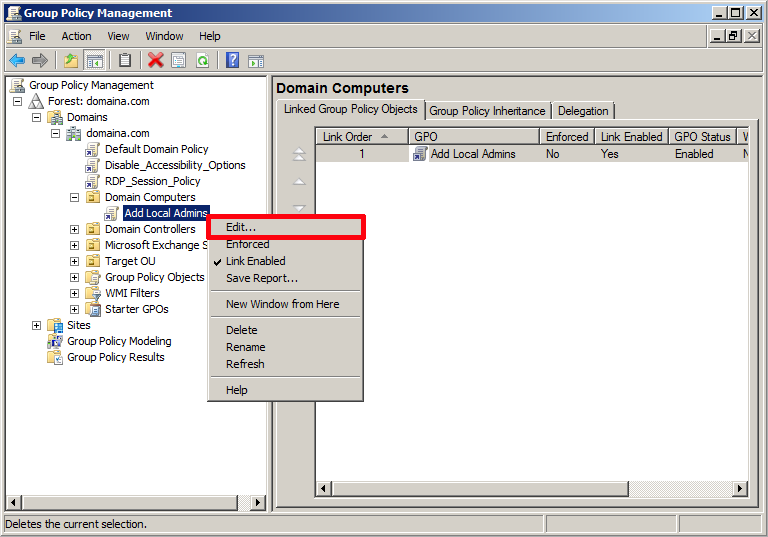
4. Edit the policy that you have just created.
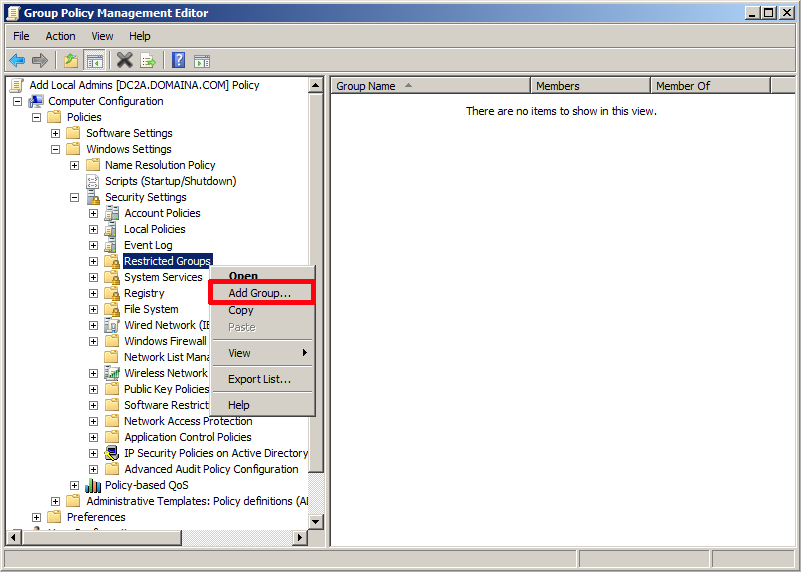
5. Navigate to:
Right click > Add Group.
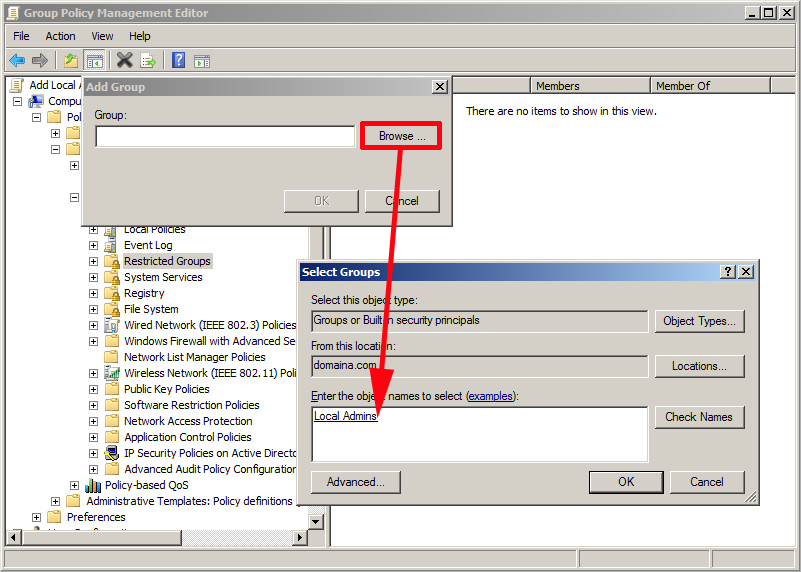
6. Browse and locate your domain security group > OK.
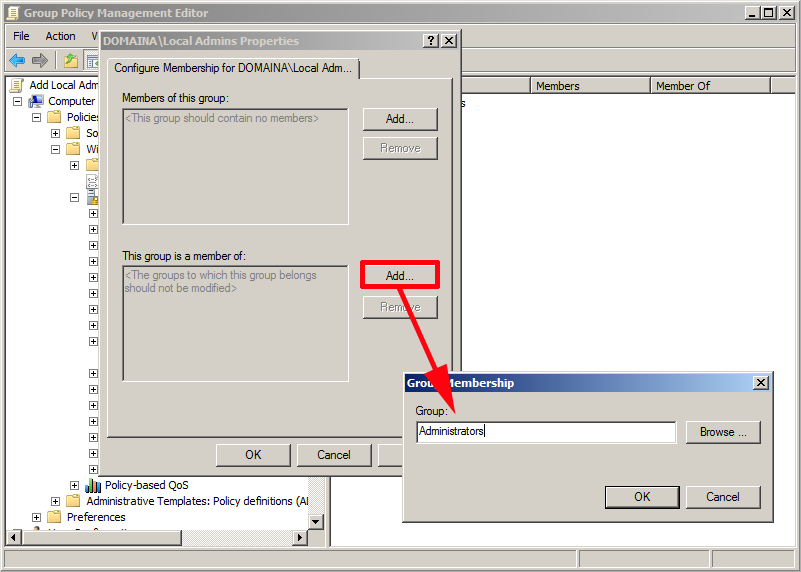
7. Under “This group is a member of” > Add > Add in Administrators >OK.
8. Apply > OK
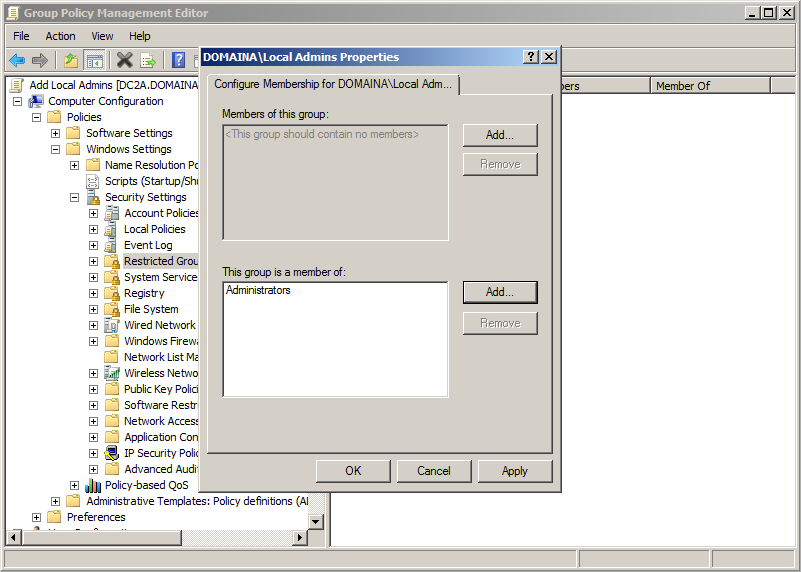
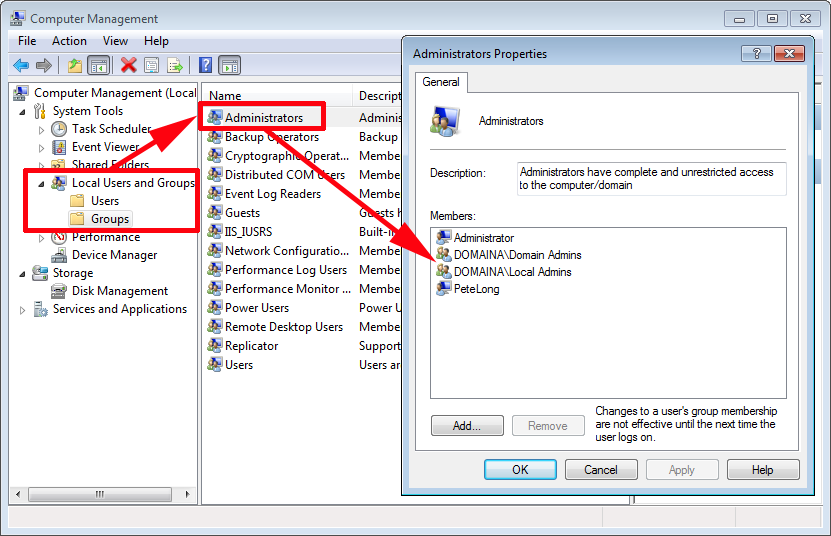
9. Now on your clients, the domain group will be added to the local administrators group.
Note: this may require a reboot or a “gpupdate /force” command.
Related Articles, References, Credits, or External Links
NA
