
KB ID 0000353
Problem
Event ID 7023
Source: Service Control Manager
Description: The Internet Authentication Service service terminated with the following error:
Only one usage of each socket address (protocol/network address/port) is normally permitted.
For more information, see Help and Support Center at http://go.microsoft.com/fwlink/events.asp.
In my case the server (SBS2003) had recently been patched and updated. It was one of those updates that had stopped the IAS service from running, this was originally seen with MS KB 956189. But the update mentioned in that article (MS KB 953230) was not visible on the list of installed updates. However the fix is the same.
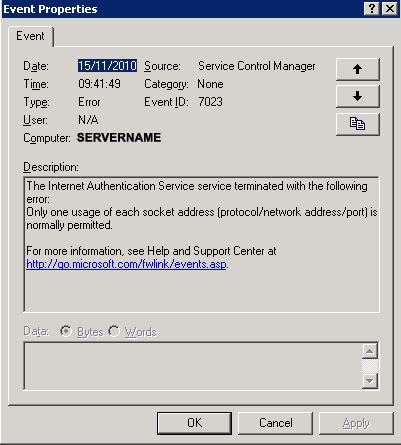
The Internet Authentication service was not running, and manually starting it, caused it to stall straight away.
Solution
1. On the affected server > Start > run regedit {Enter}.
2. Navigate to HKEY_LOCAL_MACHINESYSTEMCurrentControlSetServicesTcpipParameters
3. Locate the ReservedPorts entry and double click it.
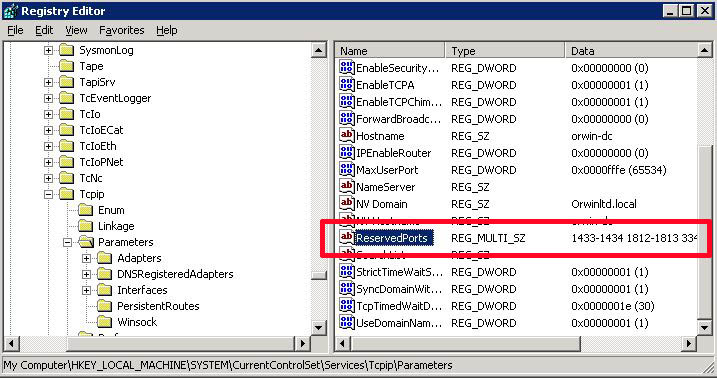
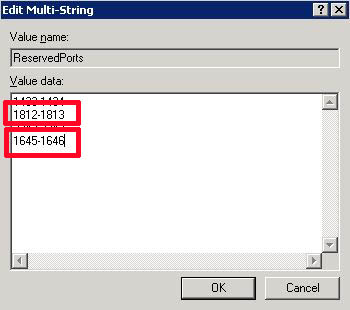
4. For IAS to run you need to have the following port ranges 1812-1813 and 1645-1646 (I was missing the second range) > OK.
Note: DO NOT remove or change any existing entries!
5. You MUST reboot the server for this to take effect.
Related Articles, References, Credits, or External Links
NA
